
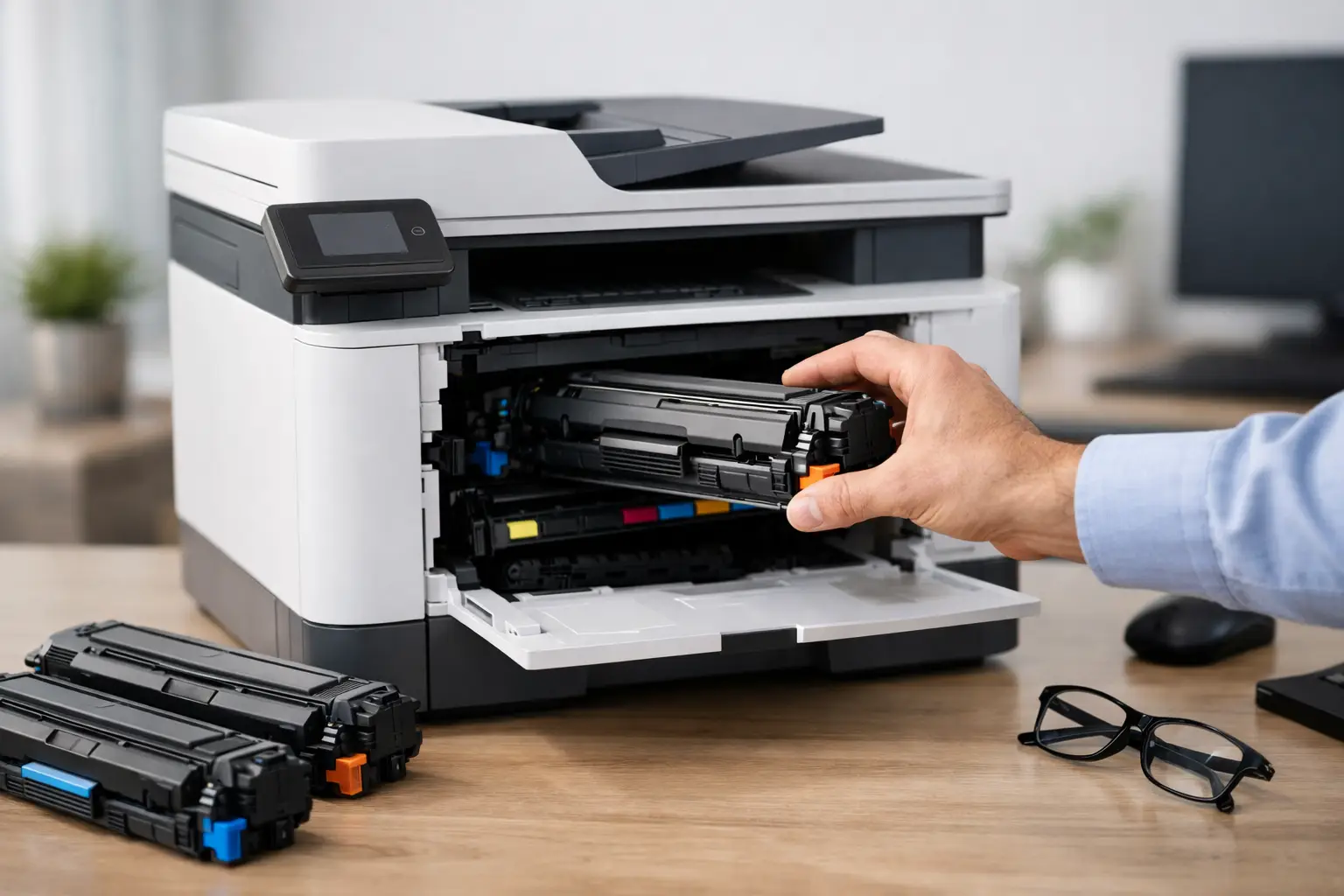
A faded invoice, streaky school assignment, or blank page usually appears at the worst possible moment. The good news is that an HP printer toner replacement is straightforward when you match the cartridge code to your printer and take a few careful steps during installation. You do not need to pay premium pricing just to get clear, dependable documents.
For home users and busy small businesses, the goal is simple: get the correct toner quickly, keep costs under control, and avoid interrupting the work waiting in the print queue. Here is how to replace HP laser printer toner with confidence.
Find the Right HP Toner Before You Order
The printer brand alone is not enough to identify the right toner. HP makes many LaserJet and Color LaserJet models, and cartridges that look similar can have different chips, page yields, or physical fittings. Start with the full printer model number, usually found on the front of the printer, near the control panel, or on a label at the back.
Next, check the toner cartridge number shown on the current cartridge, in the printer menu, or in the printer manual. It may be a number such as 26A, 85A, 206A, 414A, or a similar model-specific code. This code is the most reliable way to shop. If your printer uses more than one color, confirm whether you need black only or cyan, magenta, and yellow as well.
It also helps to consider page yield before buying. Standard-yield toner suits occasional printing and keeps the upfront cost lower. High-yield cartridges generally cost more at checkout but can provide a lower cost per page, making them a practical choice for a home office, classroom, or business that prints regularly. The best option depends on how much you print, not simply the cartridge price.
Compatible toner is a budget-friendly alternative designed to work with specific HP printer models. A quality compatible cartridge can be a smart choice for everyday documents, shipping labels, reports, and forms. The key is buying from a dependable supplier that clearly lists compatible printers, provides secure ordering, and stands behind its products with a clear return or replacement policy.
HP Printer Toner Replacement in 5 Steps
Before starting, have the new toner cartridge ready and place a sheet of paper or cloth nearby. Toner is a fine powder, so clean handling matters. Avoid touching the green drum surface or roller on the cartridge, as fingerprints can affect print quality.
- Leave the printer powered on, unless your model instructions say otherwise. Open the toner access door or front cover. The printer may move the cartridge holder into position automatically. Let the printer finish moving before reaching inside.
- Remove the empty cartridge carefully. Grip it by the handle and pull it straight out. Keep it level to reduce the chance of loose toner spilling. Set it on your prepared surface rather than directly on furniture or carpet.
- Prepare the replacement toner. Take the new cartridge out of its packaging and gently rock it from side to side a few times. This helps distribute toner evenly inside. Remove the protective seal, tape, or plastic cover completely, following the pull-tab direction printed on the cartridge.
- Install the new cartridge in the correct slot. Slide it into the printer using the guides until it is firmly seated. For color HP printers, match each cartridge to its labeled color position. Do not force it. If it does not slide in smoothly, check that you have removed all packaging materials and selected the right cartridge.
- Close the cover and print a test page. The printer may take a moment to initialize. If it displays a message about a non-HP or compatible cartridge, read the prompt and follow the on-screen option to continue where available. Then print a test page or a simple document to check text density, color, and alignment.
Some HP laser printers use separate toner cartridges and drum units, while others combine those components in one cartridge. If your printer has a separate drum unit, do not replace it automatically just because toner is low. Replace the drum only when the printer indicates it is near the end of its life or when print quality issues continue after installing fresh toner.
Choose Toner That Fits Your Printing Needs
A genuine HP cartridge may be the preferred choice for users with specific manufacturer requirements or highly controlled printing environments. For many households and smaller workplaces, compatible toner offers a more affordable route to consistent everyday printing. The practical decision comes down to your print volume, budget, and the level of support you want from your supplier.
Look beyond the headline price. A low-cost cartridge is only good value if it fits properly, produces legible pages, and arrives when you need it. Clear printer compatibility information matters more than vague claims. So does dependable fulfillment, especially if your printer supports invoices, customer paperwork, schoolwork, or important labels.
Firmware updates can sometimes change how a printer recognizes a cartridge. This does not always stop printing, but it may trigger a message on the display. Keep your printer settings and cartridge packaging information handy, and choose compatible toner from a retailer that can help if you have an issue. At Inktoner Cartridge, customers can shop by printer brand, cartridge type, and compatible model to make repeat ordering less stressful.
Fix Common Problems After Replacing Toner
Most toner replacement issues have a simple cause. If the printer does not recognize the cartridge, remove it, check for any remaining seal or protective strip, and reinstall it firmly. Confirm that the cartridge code matches your exact printer model rather than a similar-looking series.
If pages are pale, give the cartridge another gentle side-to-side shake and print a few pages. Toner may need time to distribute after shipping. For streaks or repeating marks, inspect the cartridge for damaged packaging, spilled toner, or contact points that are not fully seated.
Use these checks if print quality still is not right:
- Make sure the paper is dry, clean, and suitable for laser printing.
- Check the printer display for maintenance, drum, or transfer-unit messages.
- Print the printer’s built-in cleaning or diagnostic page if your model offers one.
- Contact the supplier promptly if a newly installed cartridge is faulty or damaged.
Do not attempt to open a sealed toner cartridge or vacuum spilled toner with a standard household vacuum. If a small amount of toner spills, wipe it gently with a dry, lint-free cloth and avoid using hot water, which can set toner into fabric. For larger spills, follow your printer manual’s cleaning guidance.
Keep a Replacement Ready
Waiting until the last page is barely readable can turn a routine purchase into an urgent problem. Keep a spare black toner cartridge if your printer is essential for work, study, labels, or household records. Businesses that rely on color documents may also want a replacement set on hand, since one depleted color can stop certain printers from completing a job.
Store unopened toner in a cool, dry place away from direct sunlight. Keep it in its original packaging until you are ready to install it. That small habit protects the cartridge and means your next replacement can take minutes instead of becoming a last-minute search.
The right toner is not just a printer supply. It is a simple way to keep everyday work moving, with clear pages, controlled costs, and one less interruption when you need to print.