
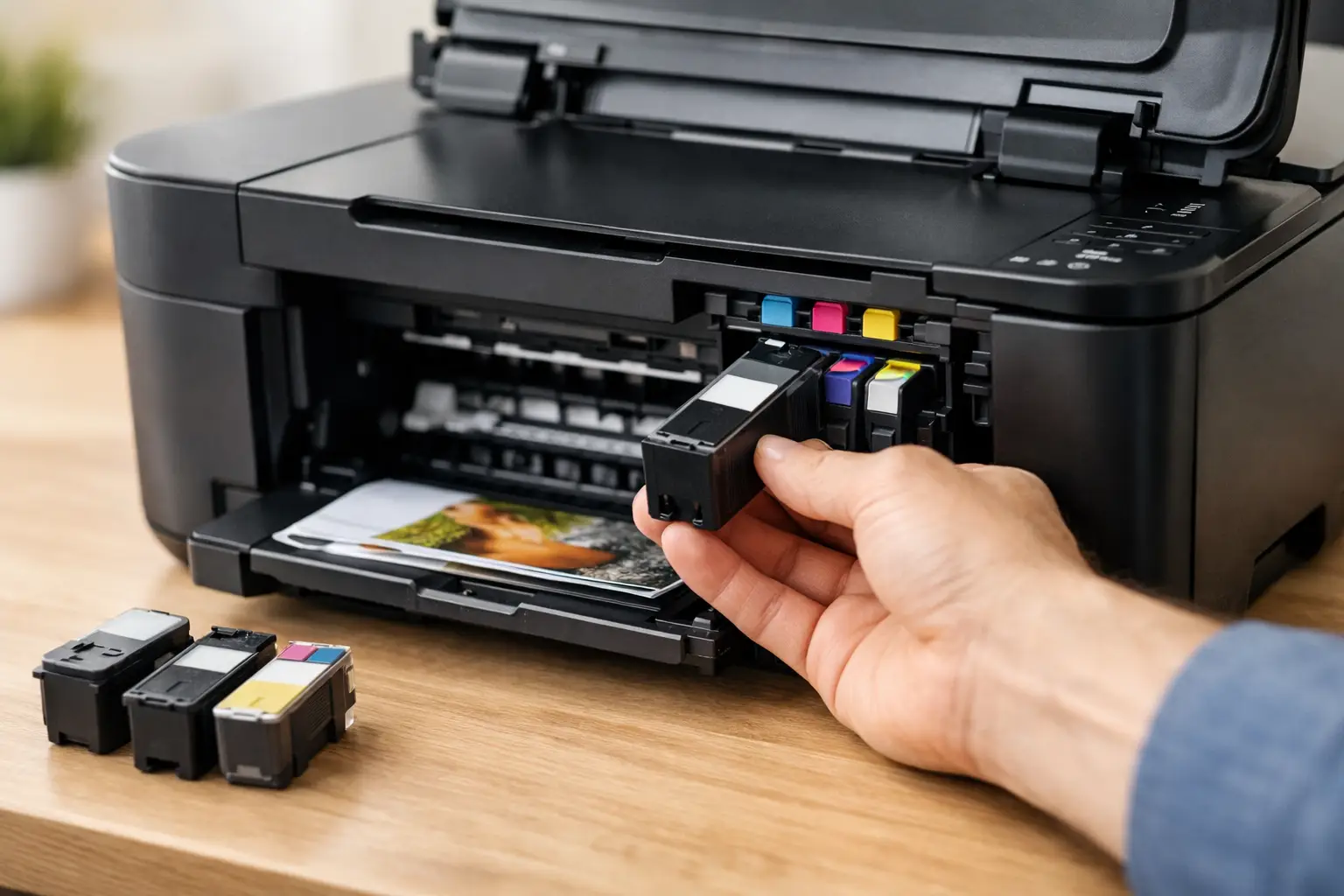
A printer rarely runs out of ink at a convenient time. It happens halfway through schoolwork, before invoices need to go out, or when you have a stack of shipping labels to print. The good news is that Canon printer ink replacement is usually quick and straightforward when you match the correct cartridge to your exact printer model and install it carefully.
The key is not to buy by color alone. Canon uses many cartridge series, and cartridges that look similar may not fit the same printer. A few minutes spent checking the printer model and cartridge code can prevent an unnecessary delay, wasted money, and a cartridge that cannot be used.
Find the Right Canon Cartridge First
Start with the model number printed on the front or top of your Canon printer. It may begin with PIXMA, MAXIFY, or imagePROGRAF, followed by letters and numbers. That full model number matters. A PIXMA printer in one series can use a completely different cartridge from another PIXMA model.
Next, check the code on the cartridge currently installed in the printer. Canon cartridge names commonly include a black cartridge and a separate color cartridge, or individual ink tanks for black, cyan, magenta, and yellow. Some printers use pigment black for sharp document text alongside dye-based color inks for photos. Others use a single black cartridge and a tri-color cartridge.
Match both the printer model and cartridge code before placing an order. This is the most reliable approach, especially if your printer has several closely related models. If the existing cartridge is unavailable to inspect, use the printer model rather than guessing from a product image.
Standard, XL, and Individual Ink Tanks
Many Canon printers accept standard-yield and high-yield XL cartridges. Both may fit the same printer, but the XL version contains more ink and generally lowers the cost per page. It is often the better buy for home offices, students, and small businesses that print regularly.
Standard cartridges can still make sense when printing is occasional, when you only need a specific color, or when you want the lowest upfront cost. The trade-off is simple: a lower purchase price now versus more frequent replacements later.
Printers with individual ink tanks offer another practical advantage. You replace only the color that has run out instead of discarding a combined color cartridge with ink still remaining in the other chambers. For users who print colorful flyers, photos, or classroom materials, this can help control ongoing costs.
Canon Printer Ink Replacement in Simple Steps
Have the new cartridge ready before removing the old one. If your printer has been switched off for a long time, turn it on and allow it to finish its startup routine first. Replacing a cartridge while the printer is powered on lets the cartridge holder move into the correct access position.
- Open the printer cover or cartridge access door and wait for the cartridge holder to stop moving.
- Identify the empty or low cartridge using the label, color mark, or message displayed on the printer screen.
- Release the old cartridge by pressing the tab or gently lifting it, depending on your Canon model. Remove it without pulling on the carriage.
- Take the new cartridge from its packaging. Remove the protective tape, cap, or plastic strip only when you are ready to install it.
- Insert the cartridge into the matching slot. Press it gently until it clicks or sits securely in place.
- Close the cover and wait while the printer recognizes the cartridge. Run a test print or nozzle check if print quality does not return immediately.
Do not touch the gold electrical contacts, ink outlet, or printhead surface. Oils or dust from your fingers can interfere with recognition or ink flow. Also avoid shaking a cartridge aggressively. A gentle side-to-side movement is enough if the packaging instructions call for it.
What to Do With Low-Ink Messages
A low-ink warning is a reminder, not always an immediate stop signal. You may still be able to print for a short time, but it is wise to have a replacement ready. Waiting until the printer stops completely can cause avoidable interruptions, particularly when you depend on it for work or school.
After installing a compatible replacement cartridge, some Canon printers may show a message that ink level information is unavailable or that a non-original cartridge has been detected. This does not necessarily mean the cartridge will not print. Follow the printer-screen prompts or hold the indicated Stop, Resume, or Cancel button if your model instructs you to do so. The exact button and timing vary by printer.
The practical trade-off with many compatible cartridges is that automatic ink-level reporting may be limited on certain models. For most users, checking print quality and keeping a spare cartridge on hand is an easy way to manage that difference while benefiting from lower replacement costs.
OEM or Compatible Canon Ink: Which Is Right?
Original Canon cartridges are made by the printer manufacturer and are a familiar choice for users who want the exact branded consumable specified for their machine. Compatible cartridges are third-party alternatives designed to fit selected Canon printer models and provide a more budget-friendly option.
The right choice depends on what you print and how often. For everyday documents, forms, emails, worksheets, and general color printing, a quality compatible cartridge can be a practical way to reduce costs. For highly specialized photo work, archival requirements, or a workplace with strict manufacturer-only supply rules, original cartridges may be preferred.
Compatibility should never mean taking chances. Buy from a supplier that clearly identifies supported printer models, uses reliable product descriptions, and provides a reasonable return or replacement option. Inktoner Cartridge focuses on dependable compatible supplies that help households and businesses keep printing without paying more than necessary.
Avoid the Most Common Replacement Problems
If a newly installed cartridge is not recognized, remove it and check for any remaining protective tape. Even a small strip left over the vent or contact area can prevent the cartridge from working correctly. Reinstall it firmly, making sure it is in the correct color slot.
If text is faint or colors are streaky after replacement, print a nozzle check from the printer maintenance menu. A single cleaning cycle may clear dried ink from the printhead nozzles. Avoid running repeated cleaning cycles unless needed, because cleaning uses ink. If the printer has not been used for weeks or months, it may take more than one check and cleaning cycle to restore normal output.
A cartridge can also be installed correctly but still produce poor results if the wrong paper settings are selected. Plain paper settings are best for ordinary documents, while photo paper needs the matching media setting for better color and ink control. For labels, use label sheets rated for inkjet printers and feed them according to the paper tray guidance.
Never force a cartridge into place. If it does not fit easily, stop and recheck the cartridge number. Forcing the wrong item can damage the holder and turn a simple supply replacement into a printer repair issue.
Keep a Spare Before You Need One
The easiest way to avoid print downtime is to order replacements before the last cartridge is empty. For a printer that sees daily use, keeping one spare black cartridge is often enough. If color printing is important, keep the relevant color cartridge or a full set available as well.
Store unopened cartridges in their original packaging at room temperature, away from direct sun and heat. Do not open them early just to check the contents. Their protective seals help preserve the ink until you are ready to install them.
A correct Canon cartridge, a clean installation, and a small backup supply can keep your printer ready for the jobs that cannot wait. Check your model now, note the cartridge code, and make the next replacement a routine task rather than a last-minute problem.