
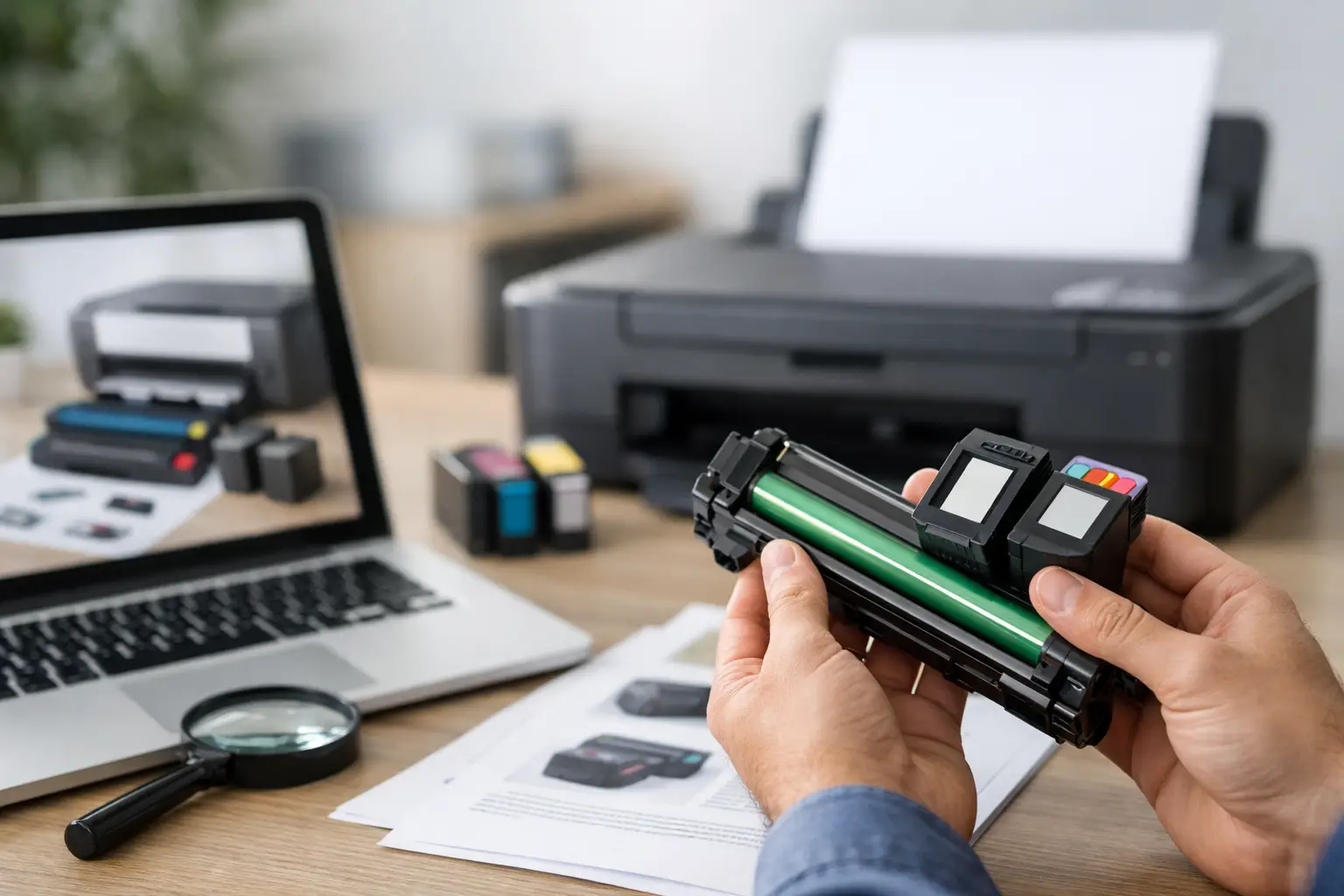
A cartridge that looks right can still be the wrong fit. Printer brands often use nearly identical model names, while one extra letter in a cartridge number can mean a different page yield, color set, or printer series. Knowing how to find cartridge compatibility before you order saves time, avoids return hassles, and keeps your printing costs under control.
Start With Your Exact Printer Model
The printer model is the most reliable place to begin. Look on the front of the printer, inside the cartridge access door, on the rear label, or in the printer settings menu. Write down the full model number exactly as shown, including letters, hyphens, and suffixes.
For example, a printer labeled HP OfficeJet Pro 9015 is not automatically the same as an HP OfficeJet Pro 9015e. They may use the same cartridge family in some regions, but assumptions are where incorrect orders begin. The same rule applies to Brother, Canon, Epson, Samsung, and Fuji Xerox printers.
If you cannot find the model on the printer itself, check your original purchase receipt, printer software, or the device list on your computer. On many printers, the model also appears on a test page or printer status report.
Do Not Order by Brand Name Alone
“Canon ink” or “Brother toner” is too broad to identify the correct supply. Every major manufacturer has multiple cartridge systems, even within one product line. An HP DeskJet, HP ENVY, and HP LaserJet may all need completely different products.
Your printer model narrows the search. The cartridge code confirms it.
Check the Cartridge Number Already in Your Printer
If you have an empty or nearly empty cartridge, remove it and read the label. The cartridge number is usually printed on the front or side, often near the brand name. It may be a number only, such as 67 or 222, or it may include letters, such as TN-247 or PGI-280.
This code is one of the fastest ways to find a compatible replacement. Search by the cartridge number and then verify that your printer model appears in the compatibility list before adding it to your cart.
A cartridge number can also reveal whether you need ink or toner. Ink cartridges are generally used in inkjet printers and contain liquid ink. Toner cartridges are used in laser printers and contain fine powder. They are not interchangeable, even if the printer brand is the same.
Keep the old cartridge until your replacement has arrived and been installed successfully. It gives you a physical reference if you need to double-check the code, color, or shape.
Understand Cartridge Families and Color Sets
Many printers use a family of cartridges rather than one universal product. A basic color inkjet printer may need black, cyan, magenta, and yellow cartridges. Other models use separate photo black, gray, light cyan, or light magenta inks for better photo output.
Laser printers follow a similar pattern. A color laser printer typically needs four toner cartridges: black, cyan, magenta, and yellow. Some laser models also use a separate drum unit, waste toner container, transfer belt, or fuser. Replacing toner does not always replace these other maintenance parts.
Before ordering, check whether you need one color or a complete set. If your printer reports that cyan is low but the other colors are still printing well, buying only cyan can be the practical choice. If several colors are running low, a multipack may provide better value and reduce the chance of another interruption next week.
Standard, High-Yield, and Extra-High-Yield Options
A standard cartridge and a high-yield cartridge may fit the same printer, but they do not offer the same number of pages. High-yield options generally contain more ink or toner and cost more upfront, although the cost per page is often lower.
For occasional home printing, a standard cartridge may be enough. For a home office, school, retail counter, or small business that prints regularly, high-yield cartridges can make more financial sense. Compatibility is about fit first, but choosing the right yield helps you buy for your actual printing volume.
Be aware that page yield estimates are based on standardized test coverage. Full-page photos, presentation graphics, and heavy black text use more ink or toner than a simple document.
Match the Supply to Your Printer Type
Printer technology matters as much as cartridge numbering. Inkjet printers use liquid ink and are commonly chosen for documents, color graphics, and photo printing. Laser printers use toner and are often preferred for higher-volume text printing, invoices, forms, and business documents.
Do not use the words “ink” and “toner” as if they mean the same thing when searching. If you own a Brother laser printer, searching for Brother ink will lead you to the wrong category. If you own an Epson EcoTank printer, you may need bottled refill ink rather than a traditional cartridge.
Label makers are another separate category. Brother P-Touch and DYMO machines use label tapes, not printer cartridges. The label maker model determines the tape cassette type, width, and compatible series. A tape may have the same color combination as another product but still use a different cassette format.
How to Find Cartridge Compatibility With Compatible Supplies
A compatible cartridge is a new replacement made by a third party to work with a specific printer model. It is not simply a random cartridge that happens to look similar. A properly listed compatible product should clearly identify the cartridge code it replaces and the printer models it supports.
Compatible supplies are a practical option for customers who want dependable printing at a price that fits their budget. The key is to buy from a specialist retailer that provides clear product descriptions, model-based compatibility information, secure purchasing, and a reasonable return policy.
At Inktoner Cartridge, the best starting point is to shop by printer brand, then confirm your exact model and cartridge code on the product listing. This approach is quicker and safer than trying to match products by appearance alone.
Compatible cartridges can be particularly useful for routine document printing, schoolwork, shipping labels, forms, and office paperwork. If you produce color-critical professional photography, fine-art prints, or manufacturer-tested proofing, OEM supplies may still be the preferred choice. The right option depends on your printer, your output expectations, and your budget.
Watch for Regional and Model Variations
Cartridge codes can vary by market. A cartridge sold for a printer in the United States may have a different number from the equivalent cartridge sold in another country. That is why the printer model and the cartridge code both matter.
Also check for variations such as “XL,” “High Yield,” “Instant Ink,” “e,” “wireless,” or “all-in-one” in a printer name. These terms do not always change cartridge compatibility, but they can indicate a different printer generation or product line.
Never rely on a photo alone. Product images are useful for reference, but the written compatibility list is the deciding factor. If the listing does not name your exact printer model or cartridge number, pause before ordering.
A Quick Compatibility Check Before You Buy
Use this simple check every time you need a replacement:
- Confirm the exact printer model from the printer label or settings.
- Read the cartridge or toner code from the current supply if available.
- Make sure you are shopping for ink, toner, drum units, refill ink, or label tape as appropriate.
- Check whether you need black only, one color, a full set, or a high-yield option.
- Verify that your exact printer model appears in the product compatibility details.
This takes a minute or two and is far more reliable than choosing the lowest-priced item that appears in a general search.
What to Do if the Cartridge Does Not Work
Even when a cartridge is compatible, installation issues can happen. Remove all protective clips, pull tabs, and sealing strips before inserting it. Make sure the cartridge is installed in the correct color slot and pressed into place securely.
If your printer shows an error message, turn it off, wait briefly, and restart it. Check the cartridge label again to confirm the code. For inkjet printers, run the printer’s built-in nozzle check or cleaning cycle if print quality is faint or streaky. For toner printers, gently rocking a low toner cartridge from side to side can redistribute toner temporarily, but it is not a substitute for replacement.
If the product is confirmed as the correct item and you still have trouble, keep the packaging and contact the retailer promptly. A clear return, refund, or replacement process gives you reassurance when ordering non-OEM supplies online.
The next time your printer shows a low-supply message, take a photo of the printer model and current cartridge label before you dispose of anything. That small habit makes reordering faster, helps prevent mistakes, and keeps your home or business ready to print when it matters.